
Stream Gear Mixer
✨ What You Can Do with This Tool
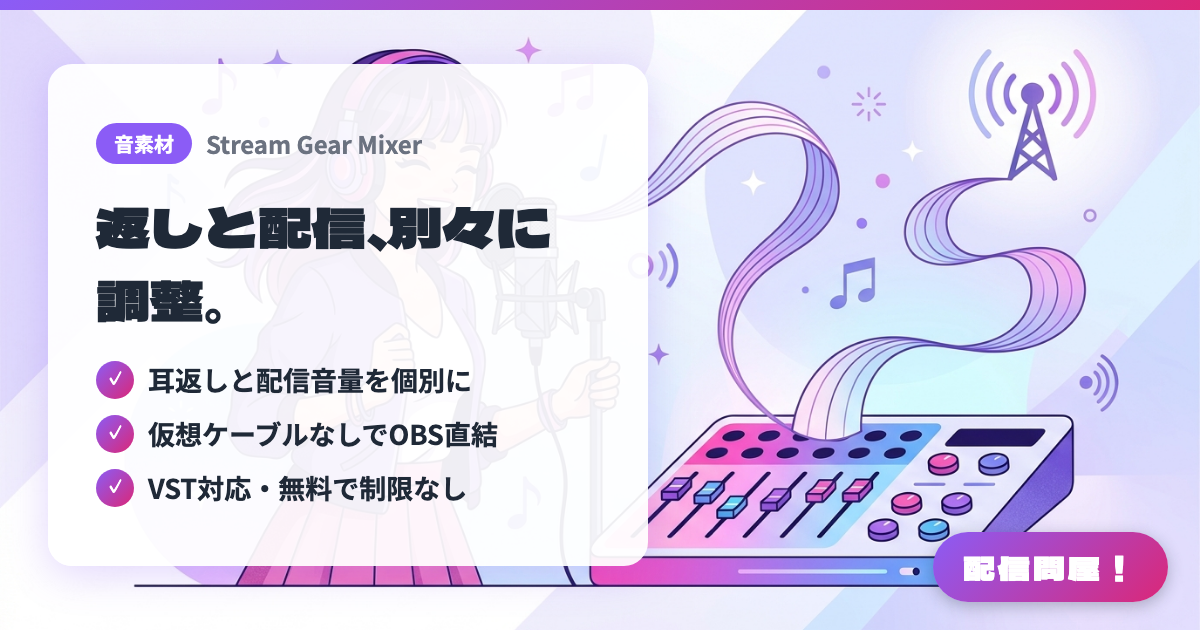
- ✓ 耳返しと配信音量を個別に
- ✓ 仮想ケーブルなしでOBS直結
- ✓ VST対応・無料で制限なし
🖼️ Screenshots
📖 What is Stream Gear Mixer?
A free real-time mixer for Windows 10/11 (64-bit), built specifically for singing streams. There are no feature limits, and the paid plugins for singing streams are sold separately and optional. You can set the volume in your own ears and the volume on stream independently. Because it captures app audio directly, no virtual cable is needed, and the bundled plugin sends audio straight to OBS. It supports ASIO for low latency and automatically aligns vocals with the backing track. Only VST2 and VST3 plugins can be used (up to 32). As an unsigned app from an individual developer, it triggers a Windows warning during installation.
💡 When to Use It
Ideal for solving a common singing-stream problem: lowering the backing track so you can sing also makes it quieter on stream. You can raise only your own monitor mix while keeping the stream volume unchanged, which suits singing streams that play karaoke tracks. It also works well for anyone who finds Voicemeeter routing difficult and wants to send audio to OBS without a virtual cable. You can switch between chatting and singing presets to run both chatting and singing streams on the same setup.
📋 Basic Info
| Price | Free |
| Supported OS | Windows |
| Developer | NoroStudio |
| Last Updated | Nov 2026 |
🚀 How to Use
- Step 1: Download the free StreamGearMixer-Setup ZIP from the BOOTH product page and run the installer (it installs the Mixer, the OBS plugin, and the Stream Deck plugin together; if "Windows protected your PC" appears, choose "More info" and then "Run anyway")
- Step 2: Follow the tutorial that starts automatically on first launch to set up your microphone, headphones, and the app playing your backing track (APP capture)
- Step 3: Add "StreamGearMixer" as an audio source in OBS and check the Mixer's meters to confirm your voice and the backing track are coming through
- Step 4: Load VST2 or VST3 compressors and reverbs into FX CHAIN, then use the separate faders to set the volume in your ears and the volume on stream
- Step 5: Save your settings as projects such as "Singing" or "Chatting", and recall them with Ctrl+Alt+Shift+number or a Stream Deck button
🎉 Highlights & Comments
What do you love about this tool?
✏️ Leave a comment (optional, up to 200 characters)
0/200