
MOZ-3 Anime Studio
✨ What You Can Do with This Tool
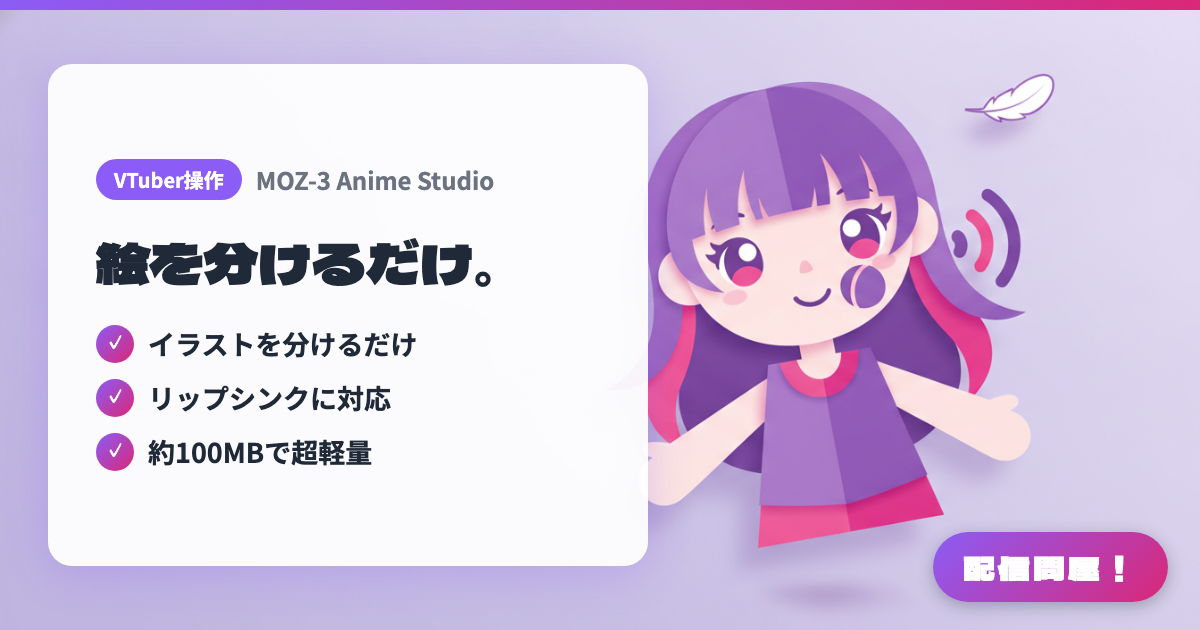
- ✓ イラストを分けるだけ
- ✓ リップシンクに対応
- ✓ 約100MBで超軽量
🖼️ Screenshots
📖 What is MOZ-3 Anime Studio?
A free Windows app that animates a 2D avatar with lip sync and blinking driven by your mic audio, simply by loading illustrations of the body plus mouth and blink variants. A pitch sensor that measures your voice pitch switches expressions automatically, and Stream Deck hotkeys let you swap models or expressions in one press. Created by Motaro, and updates continue to be released. Bring it into OBS with Window Capture plus a chroma key.
💡 When to Use It
Use it when you don't have the budget or time to prepare a Live2D model but want to start streaming with your own your own hand-drawn full-body character art right away. In chatting streams, expressions switch automatically to match your tone of voice, and during game streams a single Stream Deck button can swap to a surprised face or an outfit-change model, so you can stage reactions with minimal effort.
📋 Basic Info
| Price | Free |
| Supported OS | Windows |
| Last Updated | Oct 2026 |
🚀 How to Use
- Step 1: From the Releases page on GitHub (motaro-aniki/moz-3-anime-studio), download the latest “MOZ-3-Anime-Studio-Setup-x.x.x.exe” and install it
- Step 2: In “Import model assets (🧩 モデルの素材を組み込む)”, drop in the images for the model, mouth (lip sync variants), and eyes (blink variants) to register them
- Step 3: Measure your natural voice pitch with “① Measure voice (calibration) (① 声を測定(キャリブレーション))”, then adjust mic sensitivity, automatic switching when silent, and how many seconds an expression is held under “② Mode-specific detailed settings (② モード別・詳細設定)”
- Step 4: Start “📹 ③ Stream mode (for OBS) (📹 ③ 配信モード (OBS用))”, then in OBS click “+” under Sources and choose “Window Capture” to select MOZ-3 Anime Studio
- Step 5: Set the app's background color to “Green” or “Magenta”, then right-click the OBS source → “Filters” → “Chroma Key” to make that color transparent
🎬 Tutorial Video
🎉 Highlights & Comments
What do you love about this tool?
✏️ Leave a comment (optional, up to 200 characters)
0/200