
Sync Timer
✨ What You Can Do with This Tool
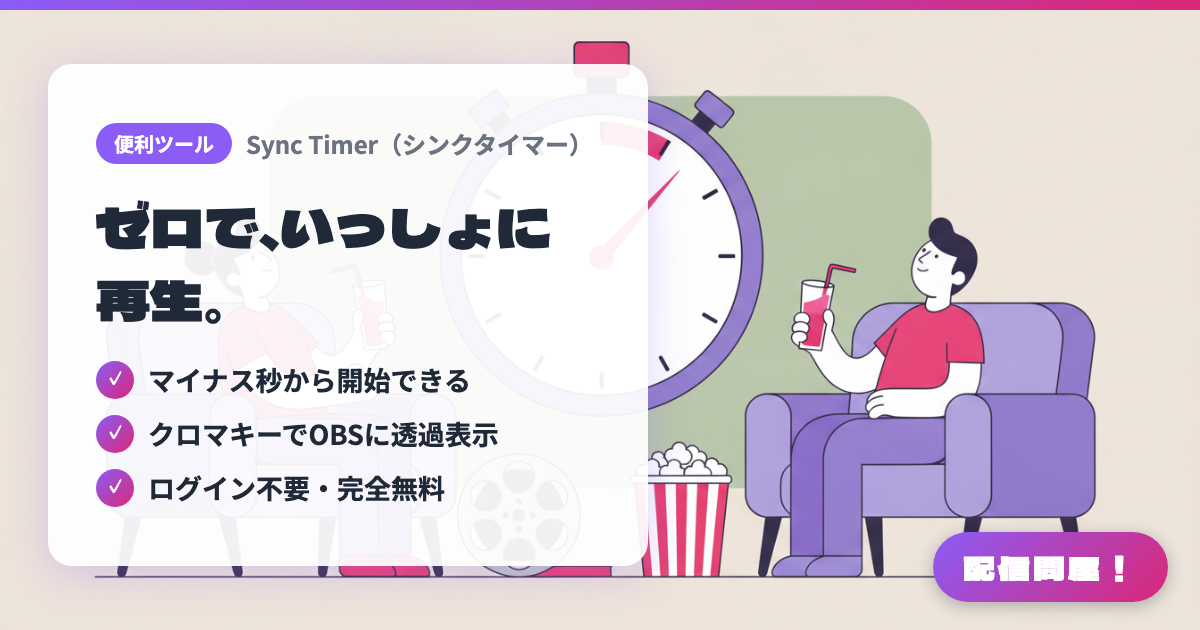
- ✓ マイナス秒から開始できる
- ✓ クロマキーでOBSに透過表示
- ✓ ログイン不要・完全無料
🖼️ Screenshots
📖 What is Sync Timer?
A browser timer for syncing playback start with your viewers during watch-along streams of movies and more. No login required and completely free. It can start from negative seconds, giving you time to hit play exactly at zero. It supports green-screen/blue-screen chroma keying and uses a monospaced font for clean transparent display in OBS, and your settings are saved in the URL automatically, so opening the same URL recreates them.
💡 When to Use It
In a movie or anime watch-along stream, show a countdown from negative time on screen and tell viewers to "press play at zero" to line up playback with your audience. It also works for showing elapsed time in a corner of the screen during endurance or work streams. Since settings live in the URL, sending the same URL to a collab partner instantly gives you matching timers, so joint watch parties take almost no prep.
📋 Basic Info
| Price | Free |
| Supported OS | ブラウザ(OS不問) |
| Developer | Eisuke Kuwahata |
| Last Updated | Sep 2026 |
🚀 How to Use
- Step 1: Open sync-timer.netlify.app in your browser. No login is needed and it's free; switch to English with "English" at the top of the screen
- Step 2: Enter the start time in the time field and check "マイナス" (Minus) to start from a countdown (the default is -00:00:10). Use "1秒戻す" (Back 1 sec) and "1秒進める" (Forward 1 sec) for fine-tuning
- Step 3: In "表示設定" (Display settings), choose the text color, font (D-DIN Bold / Lora / DSEG7 / 適当ポエム), and background color (green screen / blue screen), and toggle "「時」を表示する" (Show hours) and "カウントダウンを視覚的に表現する" (Visualize the countdown) as needed
- Step 4: Bring the timer screen into OBS and use the "Chroma Key" filter to remove the green (or blue) background so it sits on top of your stream. Settings are reflected in the URL automatically, so bookmarking that URL lets you open the same look next time
- Step 5: On stream, tell viewers "please press play at zero," then press "開始" (Start) and play the video at the moment it hits zero. When the screening ends, press "リセット" (Reset) to get ready for the next one
🎬 Tutorial Video
🎉 Highlights & Comments
What do you love about this tool?
✏️ Leave a comment (optional, up to 200 characters)
0/200