
Custom Chat CSS for YouTube & Twitch / Speech Bubbles (アサヒナピピ | BOOTH)
✨ What You Can Do with This Tool
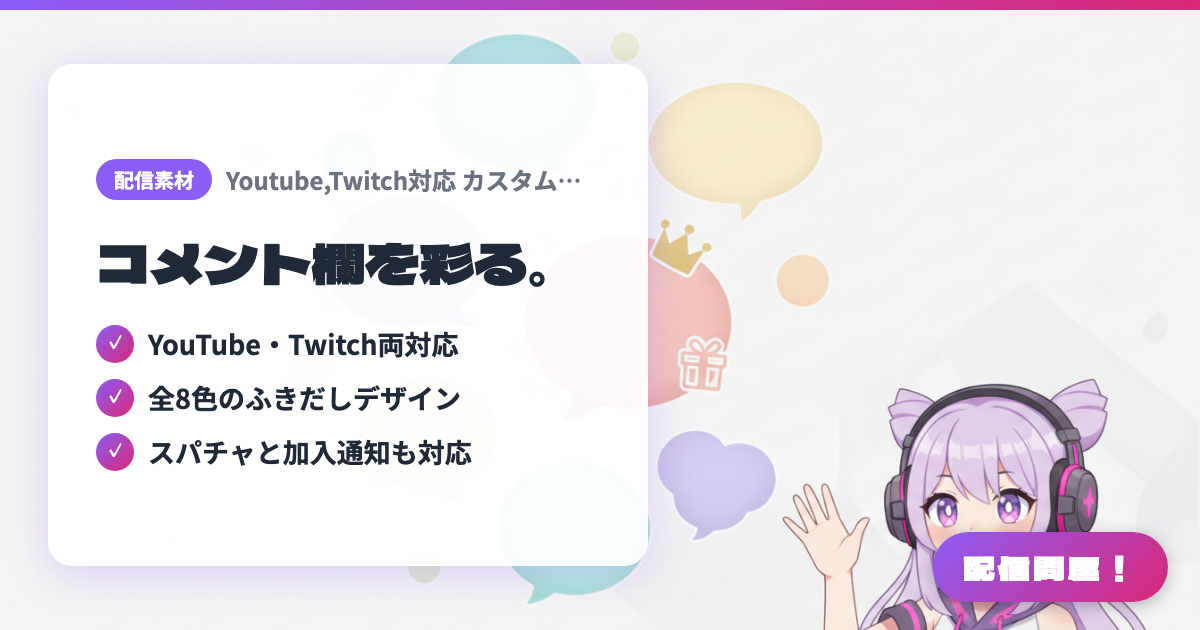
- ✓ YouTube・Twitch両対応
- ✓ 全8色のふきだしデザイン
- ✓ スパチャと加入通知も対応
🖼️ Screenshots
📖 What is Custom Chat CSS for YouTube & Twitch / Speech Bubbles (アサヒナピピ | BOOTH)?
A CSS asset you paste into the YouTube or Twitch chat display added as an OBS browser source, turning your chat into speech bubbles. It comes in 8 colors and restyles not only regular chat messages but also YouTube Super Chats and membership join notifications. Includes CSS for both YouTube and Twitch. ¥300, usable on monetized channels; redistribution, resale, and transfer are prohibited.
💡 When to Use It
For chatting streams on YouTube, when you want the chat box at the side of your screen to become speech bubbles that match your full-body character art and stream colors. Super Chats and membership join notifications show up in the same design, so thank-you moments in anniversary streams and karaoke streams really stand out. CSS for Twitch is included too, making it a good fit for streamers on both platforms who want a consistent chat look.
📋 Basic Info
| Price | Paid |
| Supported OS | Windows / Mac(OBS Studioのブラウザソースで利用) |
| Developer | アサヒナピピ |
| Last Updated | Sep 2026 |
🚀 How to Use
- Step 1: Before buying, make sure you can display YouTube or Twitch chat in an OBS browser source, and that the free sample CSS the creator provides (fukidashi-css.com) applies correctly
- Step 2: Buy it on BOOTH, download the ZIP, and extract it. Inside are chat CSS files (TXT) for YouTube and for Twitch
- Step 3: Open the TXT for the color you want (pink, gray, purple, beige, light blue, orange, blue, or red), copy everything, and paste it into the "Custom CSS" field in the properties of the OBS browser source showing your chat
- Step 4: Right-click the browser source and check "Blending Method" → "sRGB Off"
- Step 5: Adjust the position and size to fit your stream layout (recommended width: 360px). If chat doesn't appear or the CSS doesn't apply, follow the creator's "コメントCSS導入ガイド" (Chat CSS setup guide) linked on the product page
🎉 Highlights & Comments
What do you love about this tool?
✏️ Leave a comment (optional, up to 200 characters)
0/200