
Fully Customizable Clock Widget (Naku|BOOTH)
✨ What You Can Do with This Tool
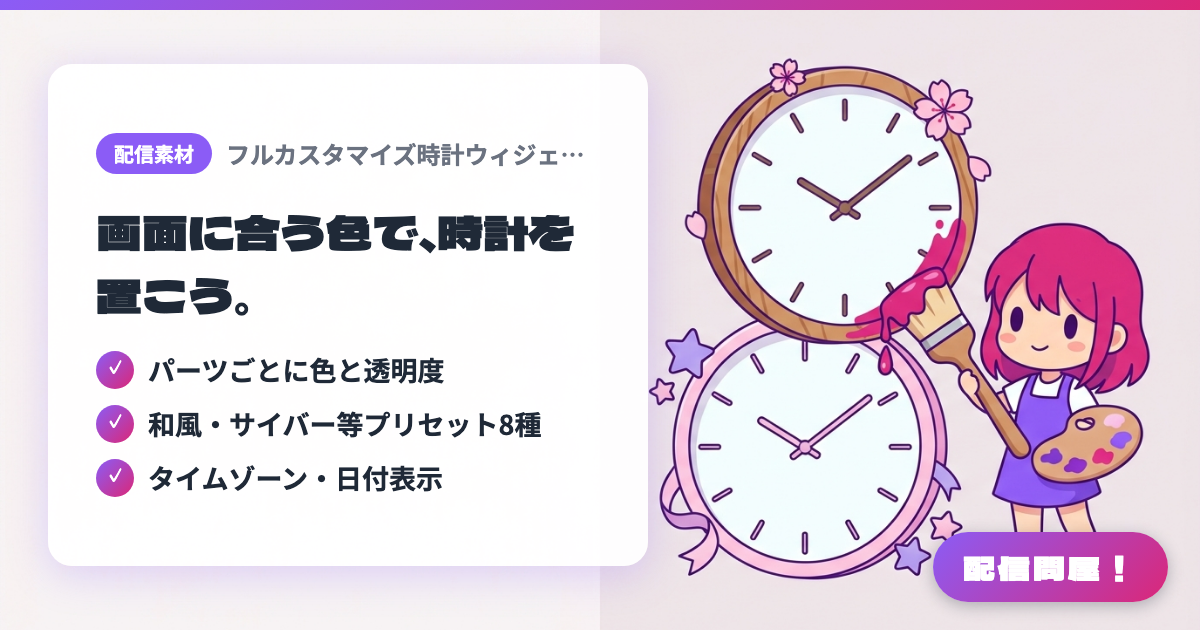
- ✓ パーツごとに色と透明度
- ✓ 和風・サイバー等プリセット8種
- ✓ タイムゾーン・日付表示
🖼️ Screenshots
📖 What is Fully Customizable Clock Widget (Naku|BOOTH)?
An analog clock widget you can place on your stream screen using an OBS Browser Source. The colors and opacity of the frame, dial, hands and tick marks can be adjusted part by part. It supports 6 fonts, 8 presets including Flat, Cyber, Japanese-style and Yume-kawa, time zones, date and digital display, 24/12-hour notation, and a smooth or stepped second hand. On BOOTH, the standard version is 100 yen and the EX version is 500 yen (adds 4 animation styles, background images and zodiac-animal tick marks). It has no timer function. Works on Windows/macOS, and companies may also use it for streaming.
💡 When to Use It
Great for work streams and chatting streams when you want a clock in colors and a design that match your stream's look, always on screen, so you and your viewers share a sense of time. If you have many overseas viewers, add time zone displays such as JST, UTC or EST to make your stream time easy to understand. It also suits anyone who wants to coordinate small on-screen items with a Japanese-style or cyber theme.
📋 Basic Info
| Price | Paid |
| Supported OS | Windows / Mac(OBS Studio) |
| Developer | Naku |
| Last Updated | Oct 2026 |
🚀 How to Use
- Step 1: Unzip the file you bought on BOOTH, then in OBS click "+" under "Sources" and add "Browser" (you can also drag and drop the HTML file onto the OBS window)
- Step 2: Check "Local file", select clock.html for the standard version or clock_ex.html for the EX version, and set the width and height to match your stream resolution
- Step 3: Be sure to check both "Shutdown source when not visible" and "Refresh browser when scene becomes active" at the bottom of the properties
- Step 4: Right-click the source and open "Interact", then double-click the clock or choose "⚙️ Open Settings" to adjust colors, fonts, presets and time zone
- Step 5: Settings are saved automatically to local storage, so close the panel, then place the clock in a corner of the screen and scale it down
🎉 Highlights & Comments
What do you love about this tool?
✏️ Leave a comment (optional, up to 200 characters)
0/200