
Rainbow Transition (Scene Change) Asset for OBS (Guesu's Item Shop | BOOTH)
✨ What You Can Do with This Tool
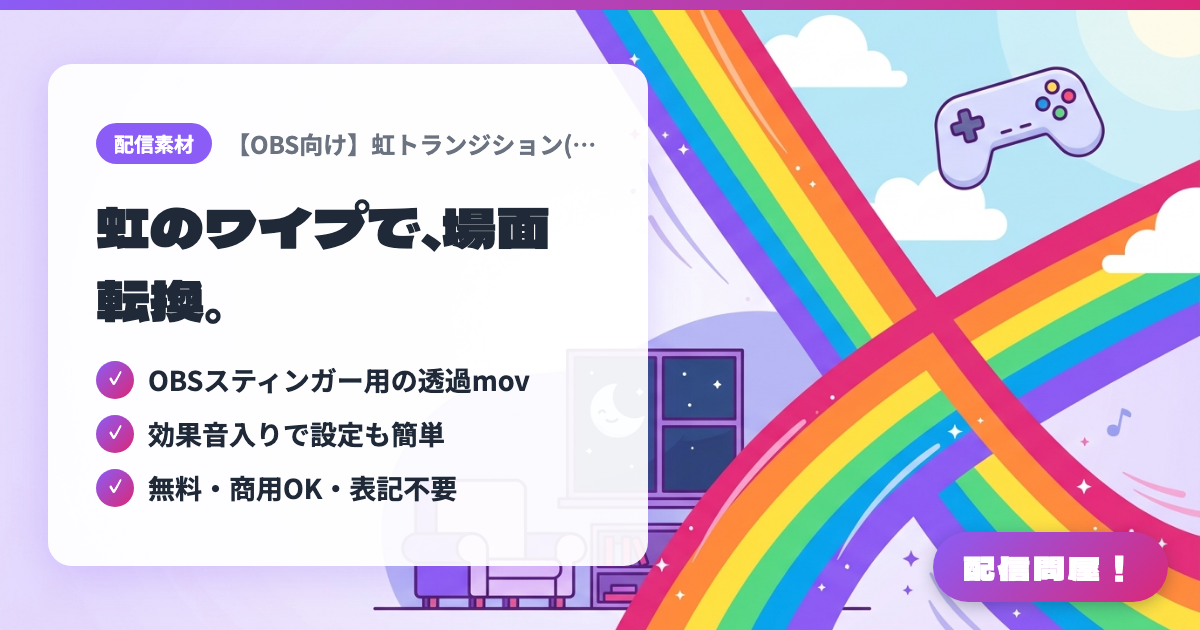
- ✓ OBSスティンガー用の透過mov
- ✓ 効果音入りで設定も簡単
- ✓ 無料・商用OK・表記不要
🖼️ Screenshots
📖 What is Rainbow Transition (Scene Change) Asset for OBS (Guesu's Item Shop | BOOTH)?
A scene-change asset for OBS Studio's "Stinger" transition, where rainbow stripes sweep diagonally across the screen. Includes a transparent mov (1280×720, with sound effects) and a text file with setup instructions. Free as a celebration of the BOOTH launch; commercial use is allowed for both individuals and companies, with no credit or notification required. Redistributing or selling the asset, distributing modified versions, and extracting and using only the audio are prohibited. Not tested with streaming software other than OBS.
💡 When to Use It
Great when you want to soften the abrupt cut when switching from a starting soon screen to the main show in a chatting stream, or from gameplay to a break screen in game streaming, with a rainbow wipe. Also a good fit for new VTubers trying a stinger transition for the first time who want to learn the setup with a free, no-credit-required asset, or for company-sponsored streams that need a commercially usable transition right away.
📋 Basic Info
| Price | Free |
| Supported OS | Windows / Mac(OBS Studio) |
| Developer | グエス・T・マンスィ(グエスの【アイテムショップ】) |
| Last Updated | Oct 2026 |
🚀 How to Use
- Step 1: Download "虹トランジション.zip" for free from the BOOTH listing page, extract it, and take out 虹トランジション.mov and the terms of use and instructions .txt file
- Step 2: In OBS Studio's "Scene Transitions" dock, click the "+" button, choose "Stinger," and give it any name you like
- Step 3: In the settings, set 虹トランジション.mov as the "Video File," set the transition point type to "Time (milliseconds)," and enter 1000
- Step 4: Set "Audio Monitoring" and the audio fade style following the included text, and choose whether you want to hear the sound effect yourself
- Step 5: Switch the scene transition to the rainbow transition you created, then change scenes (for example in Studio Mode) to check the effect and the volume
🎉 Highlights & Comments
What do you love about this tool?
✏️ Leave a comment (optional, up to 200 characters)
0/200