
Advanced Masks (OBS Plugin)
✨ What You Can Do with This Tool
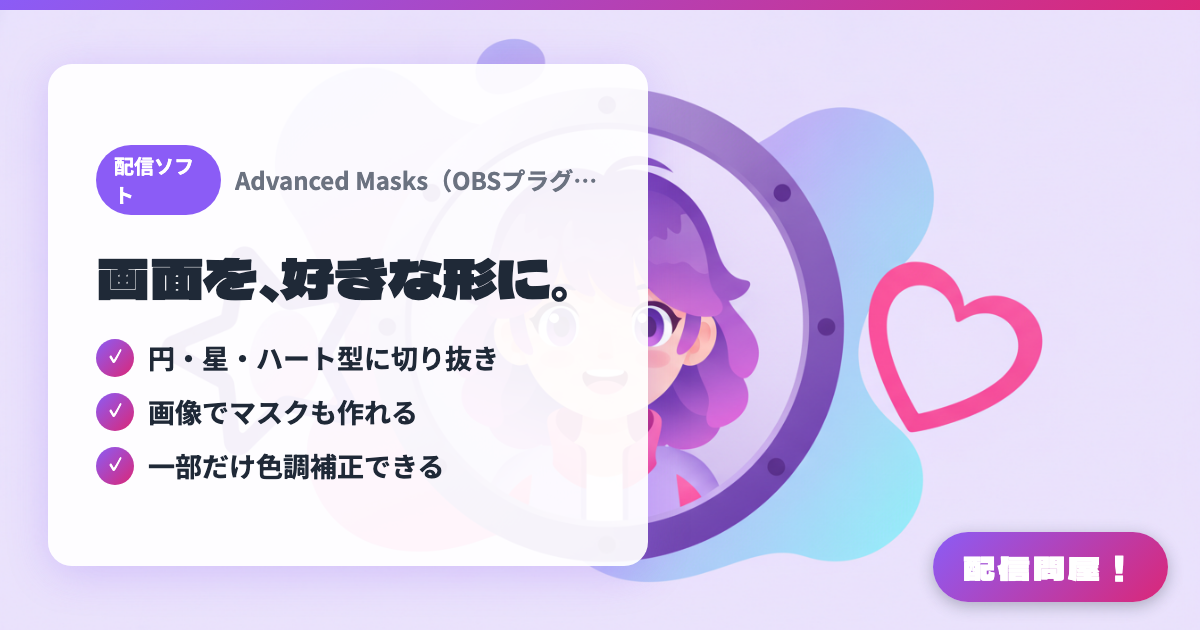
- ✓ 円・星・ハート型に切り抜き
- ✓ 画像でマスクも作れる
- ✓ 一部だけ色調補正できる
🖼️ Screenshots
📖 What is Advanced Masks (OBS Plugin)?
A free plugin that extends OBS's masking options. Combine shape masks (circles, stars, hearts, etc.), masks built from another source or image, and gradient masks. It lets you crop your avatar or stream screen into any shape you like, or apply color correction to just part of the frame. Supports Windows, macOS, and Linux.
💡 When to Use It
Useful when you want to frame your avatar in a circle or heart shape, highlight just part of a game screen, or build a custom stream layout shape without buying assets. Since it adds masking options using nothing but a free OBS plugin, it's also handy for testing layouts before you buy real overlay materials. Great for anyone who wants to polish the screen presentation of chatting, gameplay, or karaoke streams a bit further.
📋 Basic Info
| Price | Free |
| Supported OS | Windows / macOS / Linux(OBS Studio) |
| Last Updated | Aug 2026 |
🚀 How to Use
- Step 1: Install Advanced Masks, restart OBS Studio, and confirm it appears in your filter list.
- Step 2: Pick a source you want to crop — camera, game screen, avatar, chat box, etc. — and add an Advanced Mask filter to it.
- Step 3: Choose a shape mask (circle, star, heart, etc.) or image mask, then adjust position, size, and blur to blend it into the scene.
- Step 4: Layer color-correction masks — brightening a spot, shifting color, dimming the background — to emphasize the area you want to highlight.
- Step 5: Check that masks don't shift when switching scenes or during game screen motion, and check your CPU/GPU load before going live if you're stacking complex masks.
🎉 Highlights & Comments
What do you love about this tool?
✏️ Leave a comment (optional, up to 200 characters)
0/200