
LocalVocal (real-time caption plugin for OBS)
✨ What You Can Do with This Tool
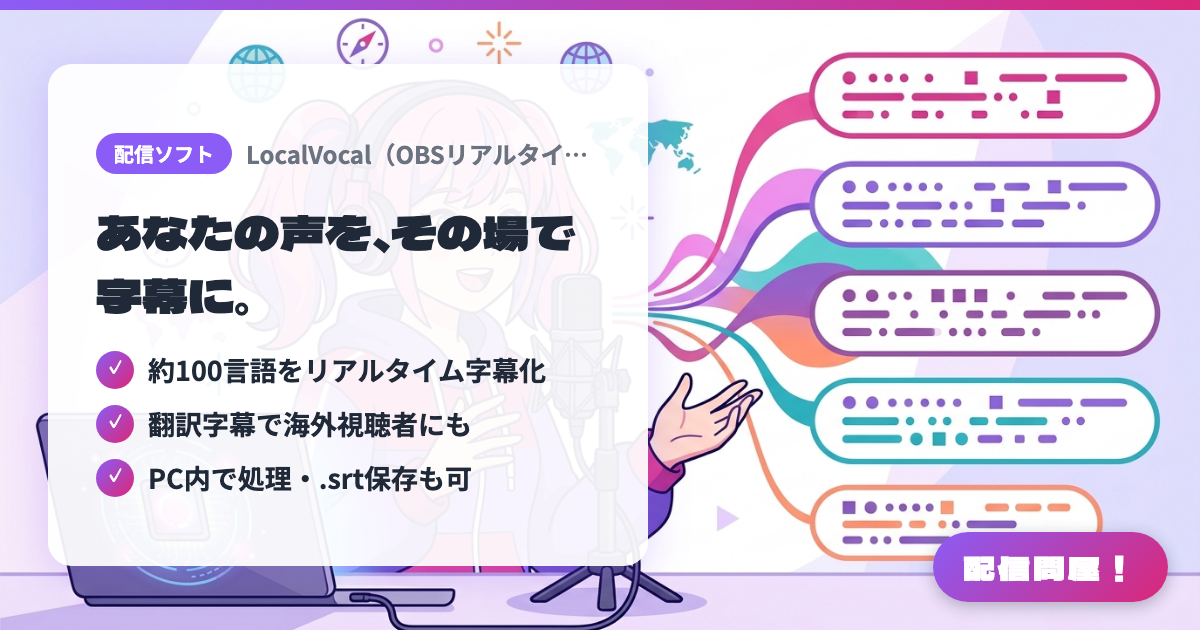
- ✓ 約100言語をリアルタイム字幕化
- ✓ 翻訳字幕で海外視聴者にも
- ✓ PC内で処理・.srt保存も可
🖼️ Screenshots
📖 What is LocalVocal (real-time caption plugin for OBS)?
An OBS plugin that runs the Whisper speech recognition model on your PC (via whisper.cpp) to transcribe your mic audio in real time in about 100 languages, including Japanese, and show it as captions. Captions can be shown in a text source, saved as .txt/.srt, and translated in real time. Transcription stays on your PC and audio is never sent to the cloud (for translation you can optionally pick cloud services like DeepL, which are billed separately). A GPU is optional (it runs on CPU, but a GPU is recommended in practice). Japanese UI, free, GPL-2.0, OBS 30.2 or later.
💡 When to Use It
When you have many overseas viewers in a chatting stream and want your Japanese speech shown as live English captions. It also helps with accessibility, keeping captions on screen for viewers who are hard of hearing or watching with the sound off. After the stream, the saved .srt file can be reused as subtitles for the VOD or clips, saving transcription work. Since audio never goes to the cloud, it also suits people who don't want to hand their voice to an outside service.
📋 Basic Info
| Price | Free |
| Supported OS | Windows / Mac / Linux |
| Developer | royshil(locaal-ai) |
| Last Updated | Oct 2026 |
🚀 How to Use
- Step 1: From GitHub Releases, download the LocalVocal installer for your OS and GPU (generic/nvidia/amd builds on Windows, version-specific .pkg on macOS), install it and launch OBS Studio 30.2 or later
- Step 2: Add a "Text" source where you want captions to appear, then right-click your mic audio source → "Filters" and add the LocalVocal Transcription filter
- Step 3: In the filter settings, choose the Whisper model size, set the input language to Japanese, and select the text source from Step 2 as the output (the model downloads automatically the first time)
- Step 4: To show translated captions for overseas viewers, enable translation and set the target language and output. This adds processing load, so pick a smaller model or the GPU build if it gets heavy
- Step 5: Turn on "Save to file" to export .srt subtitles for your archive. Exclude often-misheard phrases with sentence suppression, and check caption delay and accuracy in a test stream before going live
🎉 Highlights & Comments
What do you love about this tool?
✏️ Leave a comment (optional, up to 200 characters)
0/200