
OKUMONO +F
✨ What You Can Do with This Tool
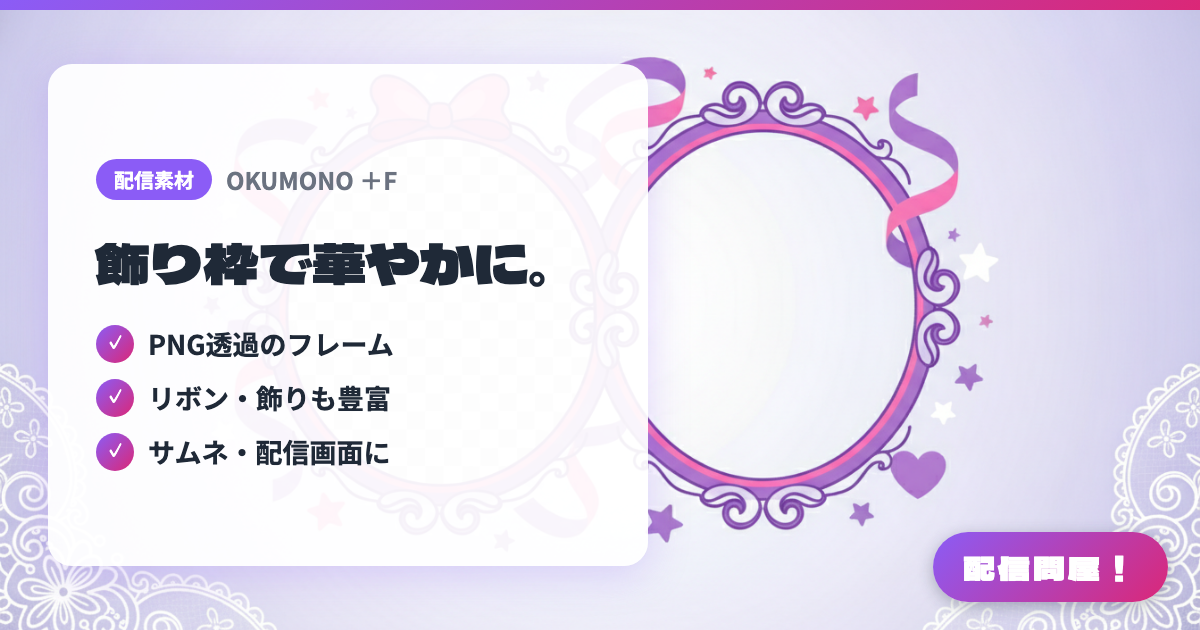
- ✓ Transparent PNG frames
- ✓ Ribbons and flourishes too
- ✓ For thumbnails and streams
🖼️ Screenshots
📖 What is OKUMONO +F?
A free asset site run by Yodogawa specialising in decorative frames. A sister site to OKUMONO (backgrounds) and OKUMONO+V (video assets), it offers frames sized to drop straight into thumbnails and stream screens: squares, circles, fluffy shapes, borders, 16:9 frames, caption bars, speech bubbles, ribbons and corner flourishes. No account or notification is needed, commercial use is allowed and credit is optional. Edits such as recolouring and resizing are free, but redistributing or selling the assets on their own and AI training use are prohibited.
💡 When to Use It
Reach for it when a thumbnail or stream screen looks empty and a single frame or speech bubble would tidy it up. The 16:9 frames work as a thumbnail base right away, which suits anyone producing a thumbnail for every stream. Caption bars and ribbons also carry over to announcement images, member introductions and notices on a starting soon screen, so you can build a consistent look without designing from scratch.
📋 Basic Info
| Price | Free |
| Supported OS | ブラウザ(OS不問。素材をダウンロードして画像編集ソフト・OBSで利用) |
| Developer | よどがわ |
| Last Updated | Sep 2026 |
🚀 How to Use
- Step 1: On OKUMONO+F (sozaino.site/f/), browse categories such as squares, circles, fluffy frames, borders, 16:9, caption bars, speech bubbles and ribbons to find the frame you want.
- Step 2: Check the terms (sozaino.site/f/kiyaku): commercial use is allowed with no notification and optional credit, while redistributing the assets on their own and AI training use are prohibited.
- Step 3: Download the asset for free and open it in an image editor such as Canva, Photoshop or CLIP STUDIO PAINT.
- Step 4: Recolour, resize or crop it as needed and layer it over your thumbnail layout before adding text.
- Step 5: To use it on a stream screen, add it as an OBS image source and place it over your camera or stream overlay frame.
🎬 Tutorial Video
🎉 Highlights & Comments
What do you love about this tool?
✏️ Leave a comment (optional, up to 200 characters)
0/200